


Welcome to the FAQ section for all exhibitors at Messe Dortmund.
Would you like to access our Exhibitor Portal directly?
Here you’ll find a practical step-by-step guide for logging in.
Tip: Also explore our comprehensive collection of FAQs designed to help make your trade fair participation even more successful.
Whether it's voucher management, mailing campaigns, or other topics – here you’ll find everything you need to plan and manage your trade fair activities effectively.
👉 Click here to jump directly to the section.
Instructions for Accessing the Online Service Center
To help you log in to the Online Service Center quickly and easily, we’ve put together the most important steps for you:
1. Open the login page
Click the following link to access the login page:
👉 Open login page
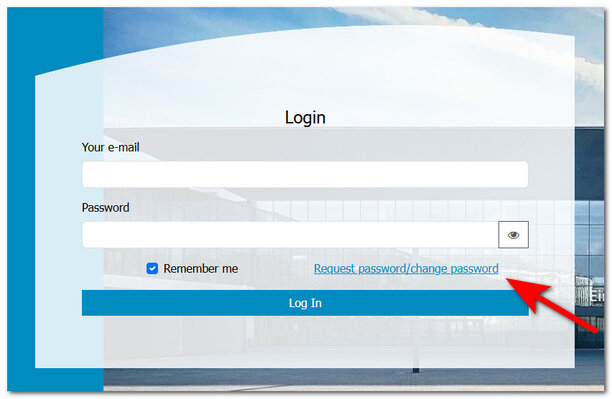
2. Request password/change password
Click on `Request password/change password`.
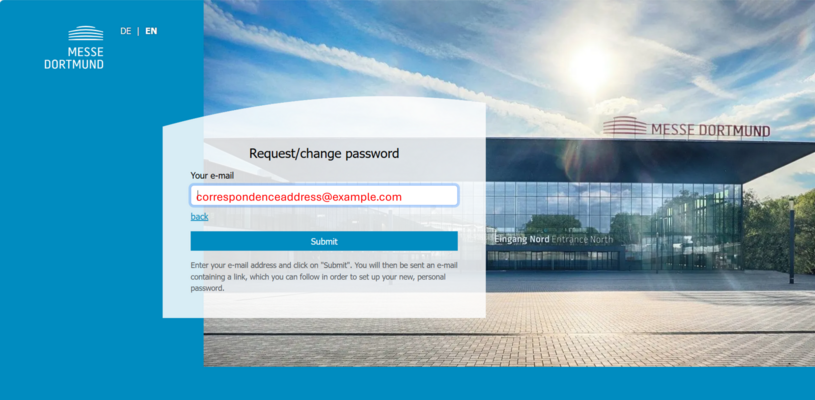
3. Enter your email address:
In the field "Your e-mail", enter the email address you provided as the “CONTACT PERSON (CORRESPONDENCE ADDRESS)” during your stand registration.
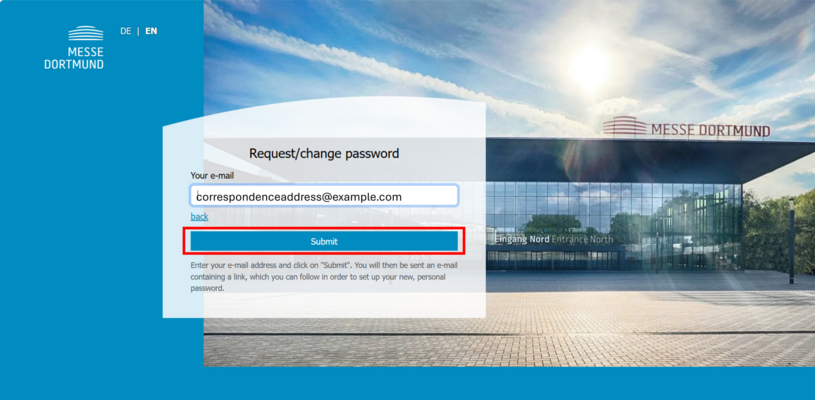
4. Request a password
Click the "Submit" button.
5. Check your email
Open your email inbox and look for a message with the subject:
"Your new personal password"
📌 Tip: Don’t forget to check your spam folder as well.
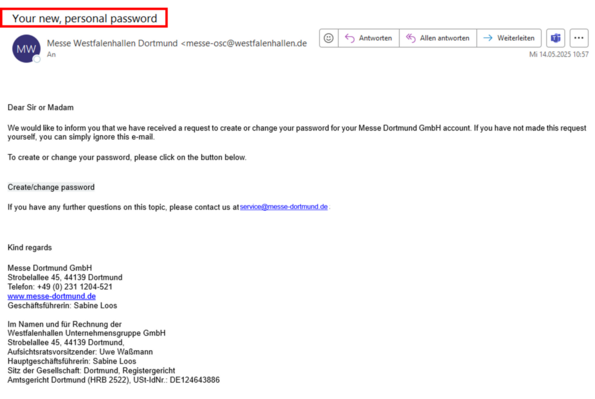
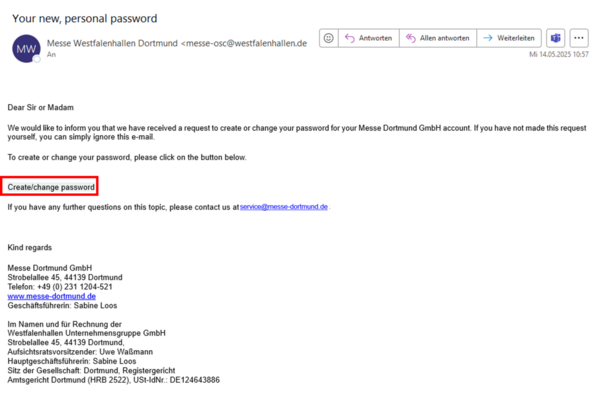
6. Open the password link
Click the "Request/Change Password" button in the email.
You will be redirected to a page where you can set your new password.
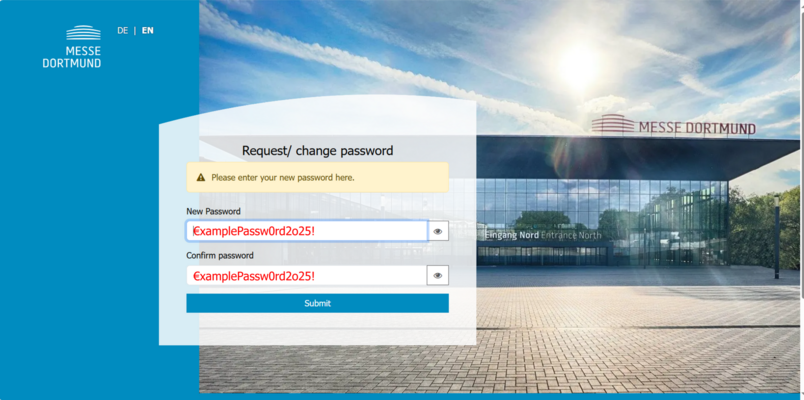
7. Set your password
Enter your desired password in the "New password" field and repeat it in the "Confirm password" field.
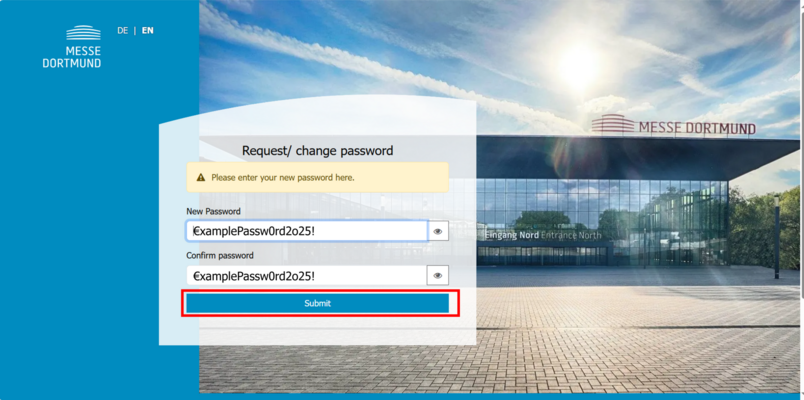
8. Save your password
Click "Submit" to save your password.
✅ Successfully logged in!
After successfully setting up your password, you will automatically be redirected to the customer area of the Online Service Center. There, you will have access to:
-
Your cost overview
-
Current dates and information about your events and stand registrations
📦 Book services
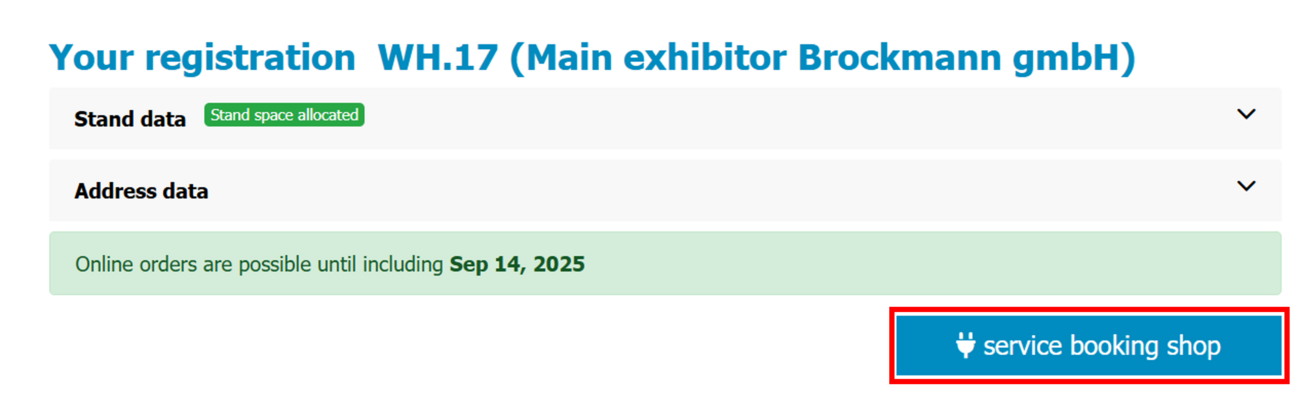
Click the "Service Booking Shop" button to go directly to the booking overview.
There, you can conveniently book all the services you need online – from power connections and exhibition walls to decorative elements for a successful trade fair appearance.
❓ Any questions? Check out our FAQs!
In addition, our Exhibitor Service Team is happy to assist you:
📧 service@messe-dortmund.de
📞 +49 231 1204-1327
We look forward to your participation and wish you a successful trade fair appearance!
Your Messe Dortmund Team
Questions and Answers
Where can I find my invoice?
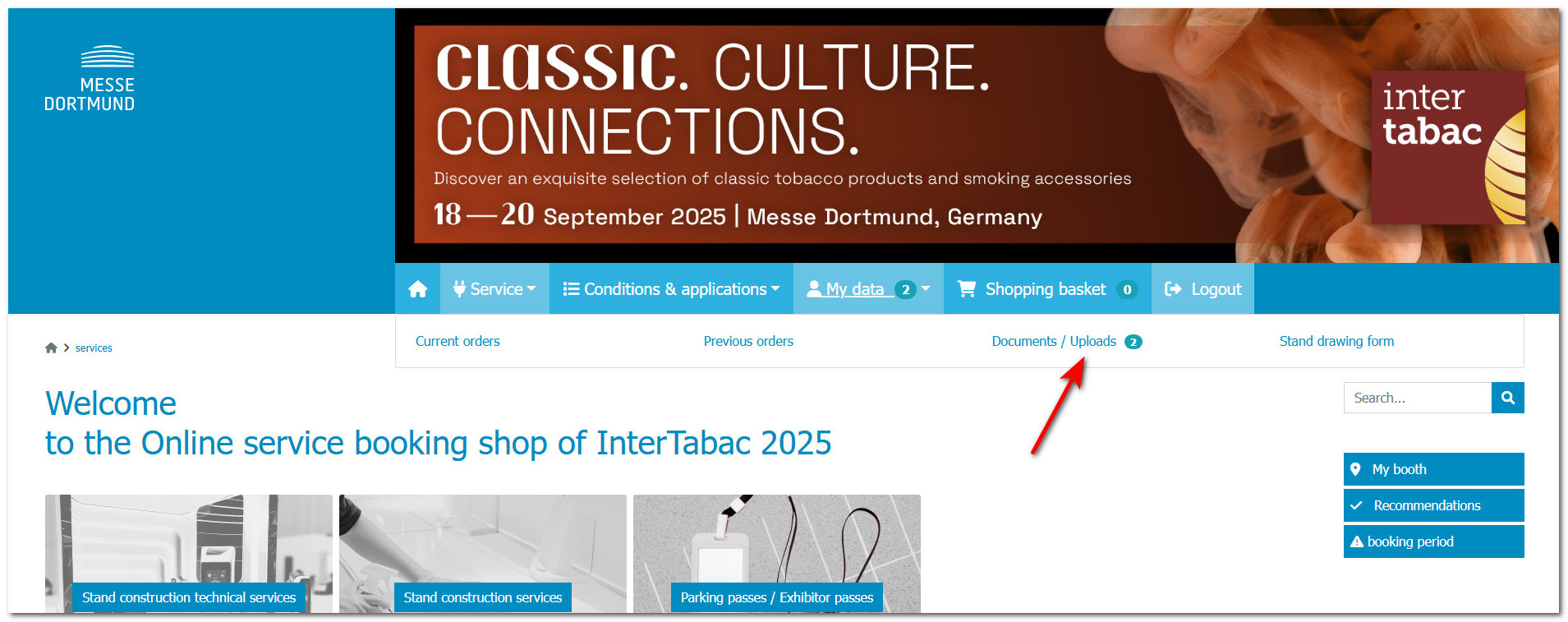
In the service booking shop, click on ‘My data’ and then on ‘Documents / File upload’.
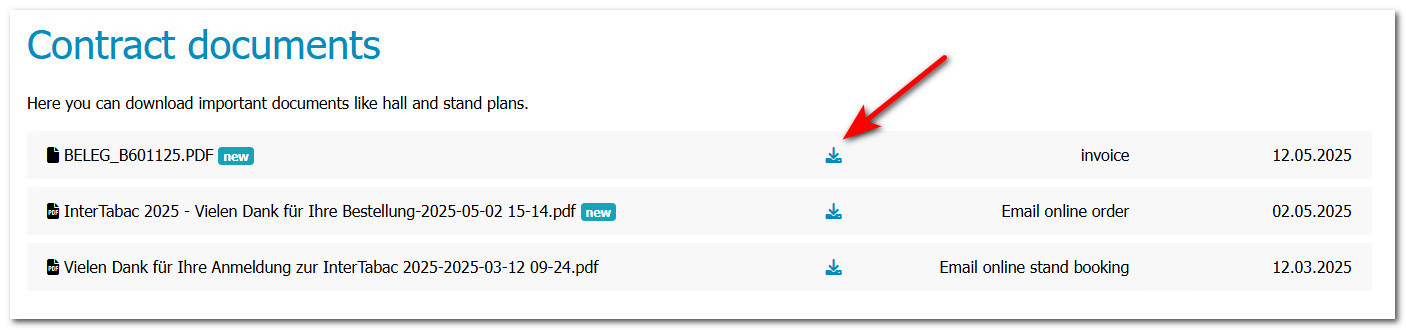
There you will find your invoice and credit vouchers as well as your order and registration confirmation. Click on the download symbol to download the corresponding document as a PDF file.
Which internet connection do I need?
Here you will find a selection guide for the right internet connection for your stand: Online selection guide
How can I upload files?
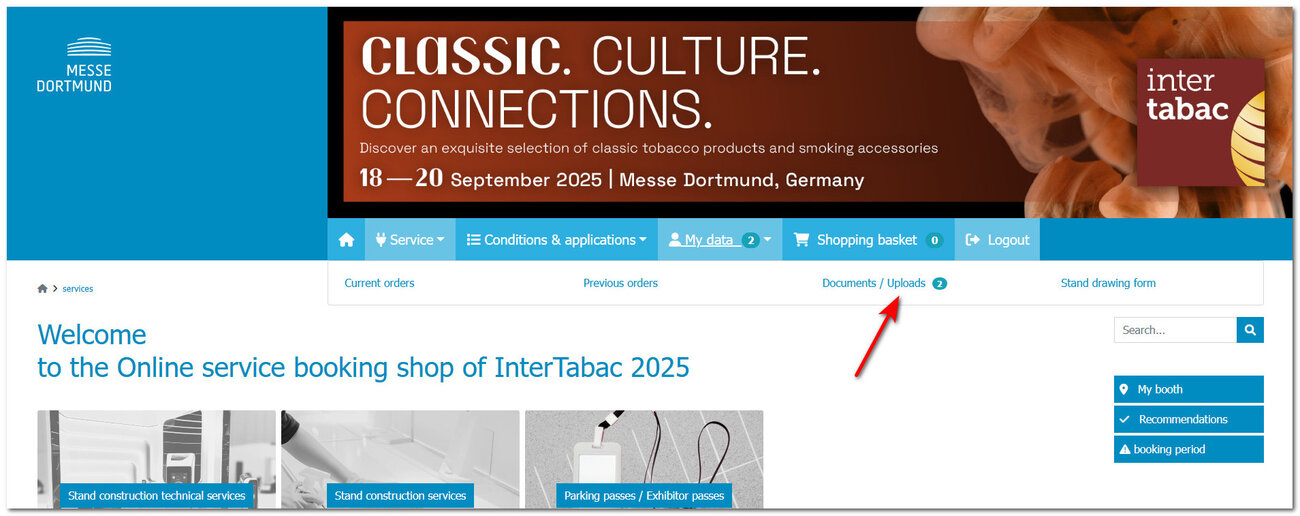
In the service booking shop, click on ‘My data’ and then on ‘Documents / File upload’.
You will find the upload function at the bottom of the page. You can either drag and drop the file to be uploaded from your computer into the ‘Drag the file into this field’ area or select the file from your computer using the ‘Choose File’ button. Then select a suitable data type, optionally add a short description and click on the ‘Upload file’ button.
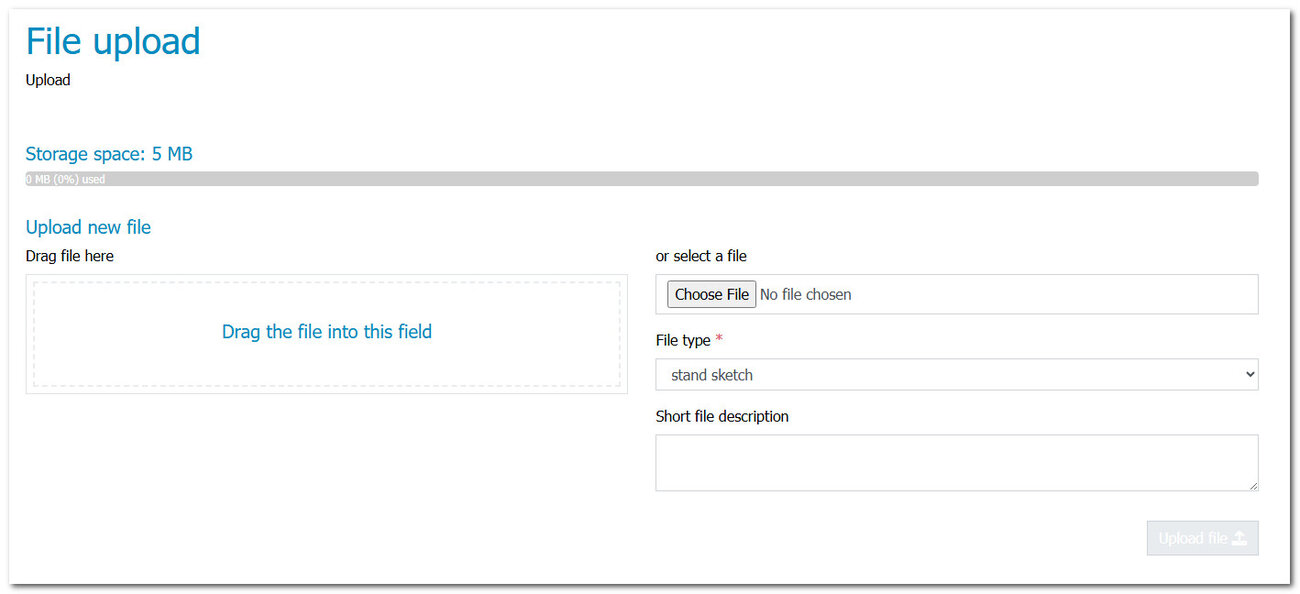
How can I create exhibitor passes?
How can I create exhibitor passes?
Exhibitor passes can be created in the exhibitor pass portal.
The pass portal can be accessed via the link in the tab ""Parking passes/ Exhibitor passes > Exhibitor passes"" in the service booking shop.
You will find the navigation menu on the left-hand side of the portal. Click on "Exhibitors - passes" to edit your passes or add new ones.
Then click on the "New exhibitor passes" button. You now have two options:
1) Create individual (1) exhibitor pass
2) Create multiple exhibitor passes
For 1):
Select the language, the tariff and the number of exhibitor passes. You can then enter your data, accept the terms and conditions and click on "Save & Send". The exhibitor pass will now be sent to the e-mail address you entered.
For 2):
Select the language, the tariff and the number of exhibitor passes. Then download the "Multiple exhibitor pass" template. Enter all the data in the Excel file and then upload the completed file via the "Upload edited template "Multiple exhibitor pass"" tab. Accept the terms and conditions and click on "Save & Send". The exhibitor pass will now be sent to the e-mail addresses entered.
Important: This template can only be used to create as many passes as are available in the tariff.
How can I create vouchers for my customers?
Vouchers for your customers can be created in the voucher portal.
The voucher portal can be accessed via the link in the "Admission vouchers for your customers" tab in the service booking shop.
You will find the navigation menu on the left-hand side of the voucher portal.
Click on ‘Create vouchers’ to create or edit admission vouchers for your customers via a voucher campaign.
Click on the "Create vouchers" button. You now have two options:
1) Download vouchers
2) Send vouchers by e-mail
For 1):
Enter a name for your voucher campaign. Click on "Continue". You can now set the number of entry vouchers and send your vouchers to your customers independently in the form of an Excel file using the "Download" button.
For 2):
Select whether the invitation should be sent individually or in bulk via Excel upload.
- Single invitation: Enter a name for your voucher campaign. Then select the rate and language. In the next step, you can select a template for the e-mail. Then enter the recipient's details, accept the terms and conditions and click "Save".
- Multiple invitations: Enter a name for your voucher campaign. Then select the tariff and language. In the next step, you can select a template for the e-mail. Then download the Excel template. Enter all the data in the Excel file and then upload the completed file via the "Upload edited template "Multiple vouchers"" tab. Accept the terms and conditions and click on "Save".
Where can I see how many vouchers have been redeemed?
As soon as the tickets have been redeemed at the entrance on site, you can see which vouchers have been redeemed in the voucher portal under the menu item ‘Visitors’. You can view the data until around four weeks after the end of the trade fair, after which the portal will be closed.
Which power connection do I need?
Orientation aids:
When planning your trade fair presence, it is essential to ensure that the combined connected load of your electrical devices does not exceed the power supported by the electrical connection provided. Bear in mind that the stand lighting is also connected to the same electrical connection. Here are some examples of connected loads:
- Laptop (approx. 60-100 W)
- LED lighting (up to 20 W per lamp, depending on type and number)
- Coffee machine (approx. 800-1,200 W)
- Monitor (approx. 30-150 W)
- Refrigerator (approx. 100-200 W)
- Commercial dishwasher (approx. 7,000 - 9,000 W)
- Private dishwasher (approx. 1,200 - 2,000 W)
- Electric advertising displays (up to 500 W depending on size and type)
- Mobile chargers (up to 25 W depending on capacity)
It is advisable to check the exact power requirements of your appliances and ensure that they are compatible with the available electrical capacity. The basic power supply is via the included 5-pin 16A CEE connection.